Require trusted path for credential entry

Require trusted path for credential entry

It is better to have a security policy on a high level if there is a shared system is being used. When a normal user tries to make a change that can only be done with the administrator user, and then he will be asked with an additional step. You can see the images of those below.


Pop-up 1
Pop-up 2

This policy setting requires the user to enter Microsoft Windows credentials using a trusted path, to prevent a Trojan horse or other types of malicious code from stealing the user’s Windows credentials.


Note: This policy affects no logon authentication tasks only. As a security best practice, this policy should be enabled.


If you enable this policy setting, users will be required to enter Windows credentials on the Secure Desktop by means of the trusted path mechanism.


If you disable or do not configure this policy setting, users will enter Windows credentials within the user’s desktop session, potentially allowing malicious code access to the user’s Windows credentials.


Process 1

You need to navigate to this location:

Computer Configuration\Administrative Templates\Windows Components\Credential User Interface

Double-click the “Require trusted path for credential entry” policy.

Set it to Enable. Click Apply and then OK.

Once it is done, whenever a normal/standard user will try to open a part that require admin right will be asked for the login detail of a admin user.


Process 2

You need to follow below steps to make that applicable with the help of registry.

Registry Hive HKEY_LOCAL_MACHINE
Registry Path Software\Microsoft\Windows\CurrentVersion\Policies\CredUI
Value Name EnableSecureCredentialPrompting
Value Type REG_DWORD
Enabled Value 1
Disabled Value 0

Display the password reveal button

Display the password reveal button

This policy setting allows you to configure the display of the password reveal button in password entry user experiences.

If you enable this policy setting, the password reveal button will not be displayed after a user types a password in the password entry text box.

If you disable or do not configure this policy setting, the password reveal button will be displayed after a user types a password in the password entry text box.

By default, the password reveal button is displayed after a user types a password in the password entry text box. To display the password, click the password reveal button.

The policy applies to all Windows components and applications that use the Windows system controls, including Internet Explorer.

By default it has an icon of eye, by clicking on it you will be able to see the entered password.

After appying the setting of not to reveal the password will disappear the eye icon. Here are the steps:

Computer Configuration\Administrative Templates\Windows Components\Credential User Interface

Double-click the “Do not display the password reveal button” policy.

Set it to Enable. Click Apply and then OK.

Here is the result

Here is a process of registry key word that we can apply to make the same changes.

Navigate to this location

HKEY_LOCAL_MACHINE \ SOFTWARE \ Microsoft \ Windows \ CurrentVersion \ Policies \ CredUI
  1. Right-click any blank area in the right panel and select New -> DWORD (32-bit) Value. Name it DisablePasswordReveal and leave its value as 1.
  2. Close Registry Editor.


Hide Administrator Account in UAC Prompt

Hide Administrator Account in UAC Prompt

In Workstation or Windows server administrator is a user who can perform any kind of task and make any changes related to the Group Policy of the system, registry or any other one too. There are other use group type we do have like standard group. If we create a normal or standard user and requiring to open a program that really need to have admin privilage. If you are not a admin user in that case you will be prompt a Pop-up message requring you to enter admin user login information (Username and Password).

Here is the point, by default it shows you the name of admin users and you only need to enter the password for that. But what, if you want the user to enter the username and password means not to show the list of admin user. Please follow the below steps to get that applicable.

By default the Pop-up image you see

Open the Local Group Policy Editor and browse to:

Computer Configuration \ Administrative Templates \ Windows Components \ Credential User Interface

This policy setting controls whether administrator accounts are displayed when a user attempts to elevate a running application. By default, administrator accounts are not displayed when the user attempts to elevate a running application.
If you enable this policy setting, all local administrator accounts on the PC will be displayed so the user can choose one and enter the correct password.
If you disable this policy setting, users will always be required to type a user name and password to elevate.

Double-click the “Enumerate administrator accounts on elevation” policy.

Set it to Disabled. Click Apply and then OK.


For those using a Home edition of Windows 10 which lacks the Local Group Policy Editor, you can use the following registry tweak to hide the administrator accounts from the UAC prompt.

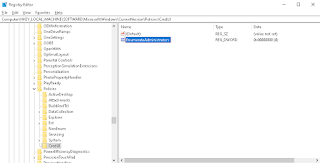
  1. Open Registry Editor and navigate to:

    HKEY_LOCAL_MACHINE\SOFTWARE\Microsoft\Windows\CurrentVersion\Policies\CredUI

    If you do not have the CredUI key, then just create it.

  2. Right-click any blank area in the right panel and select New -> DWORD (32-bit) Value. Name it EnumerateAdministrators and leave its value as 0.
  3. Close Registry Editor.

    If you need to make UAC prompt show administrative accounts again, just change the value of EnumerateAdministrators to 1 and you’re done.