In this article, we will explore the features of researching and analyzing RDP logs for Windows. As a rule, the described methods may be helpful when investigating RDP-related activity on RDS (end) Windows servers in forensics operations, where the system administrator must provide details of where users have access to the RDS server, where a particular RDP user has authorized and terminated the session, which device (name or IP address) the user is connected to. I think this information will be useful for RDS company farm managers and owners of different RDP servers published on the Internet (Windows VPS is still very popular).
We can check the Remote connection logs using Windows Event Viewer (“eventvwr.msc”). Windows Logs contains a lot of data, and it's hard to find the event you need. When a user connects remotely to an RDS remote desktop (RDP), the total number of events appears in Windows Event Viewer. There are various logs where you can find information about Remote Desktop connections. We will look at logs and events in the main categories of RDP connections that may be of interest to the manager:
- Network Connection
- Authentication
- Login & Logoff
- Session reconnect
- Session disconnect
Network communication The establishment of a network connection with a server from an RDP user client. It's an event with EventID 1149 (Remote Desktop Services: User authentication successful). If this event is available, it does not mean that user verification has been successful.
This log is available in: -
- Applications and Services Logs
- Microsoft
- Windows
- Terminal-Services-RemoteConnectionManager
- Operational
Enable the log filter for this event (right-click on log -> Filter Current Log -> EventId 1149).
Authentication indicates whether the RDP user has been successfully verified on the server or not. The log is available in "Windows -> Security". You may therefore be interested in events with EventID 4624 (Account logged successfully) or 4625 (Account failed to login). Please note the LogonType value in the event description. If the Remote Desktop service is used to create a new session during login, LogonType = 10. If LogonType = 7, it means the user is reconnected to an existing RDP session.
Logon refers to the RDP login in the system, an event that occurs after a user has been successfully verified. It is an event with EventID 21 (Remote Desktop Services: Session Login successful).
These events are available at
- Applications and Services Logs
- Microsoft
- Windows
- TerminalServices-LocalSessionManager
- Operational
As you can see, here you can find the user's RDP session ID - Session ID.
Session Disconnect/Reconnect – Session disconnection/reconnection events have different IDs depending on what caused user disconnection (disconnection to inactivity, Disconnect option has been selected by the user in the session, RDP session ended by another user or an administrator, etc.).
You can find these events in the logs located in
- Applications and Services Logs
- Microsoft
- Windows
- TerminalServices-LocalSessionManager
- Operational
Let’s consider the most interesting RDP events:
EventID – 24 (Remote Desktop Services: Session has been disconnected) – a user has disconnected from the RDP session.

EventID – 25 (Remote Desktop Services: Session reconnection succeeded) – a user has reconnected to the existing RDP session on the server.

EventID – 39 (Session A has been disconnected by session B) – a user has disconnected from the RDP session by selecting the corresponding menu option (instead of just closing the RDP client window). If the session IDs are different, a user has been disconnected by another user (or an administrator).

EventID – 40 (Session A has been disconnected, reason code B). Here you must view the disconnection reason code in the event description. For example:
reason code 0 (No additional information is available) usually means that a user has just closed the RDP client window.

reason code 3 (No additional information is available)

reason code 5 (The client’s connection was replaced by another connection) means that a user has reconnected to the previous RDP session.

Reason code 11 (User activity has initiated the disconnect) means that a user has clicked the Disconnect button in the start menu.
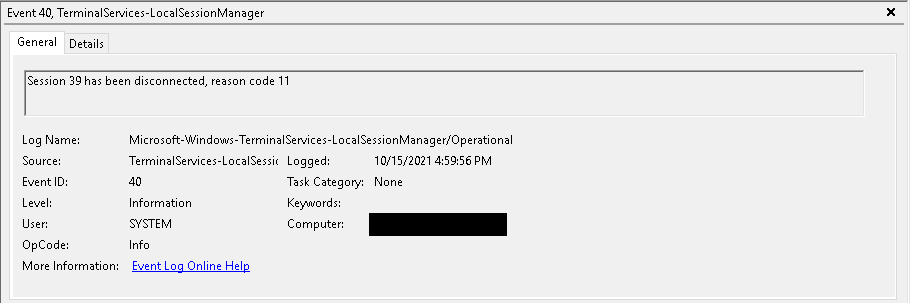
reason code 12 (No additional information is available)

The event with the EventID 4778 in Windows -> Security log (A session was reconnected to a Window Station). A user has reconnected to an RDP session (a user is assigned a new LogonID).
The event with the EventID 4799 in “Windows -> Security” log (A session was disconnected from a Window Station). A user has been disconnected from an RDP session.
Logoff refers to the user log-off from the system. It is logged as the event with the EventID 23 (Remote Desktop Services: Session logoff succeeded).
- Applications and Services Logs
- Microsoft
- Windows
- TerminalServices-LocalSessionManager
- Operational
At the same time, the event with the EventID 4634 (An account was logged off) appears in the Security log.
The event with the EventID 9009 (The Desktop Window Manager has exited with code <X>) in the System log means that a user has initiated logoff from the RDP session with both the window and the graphic shell of the user have been terminated.

